> ## Documentation Index
> Fetch the complete documentation index at: https://docs.goodgrants.com/llms.txt
> Use this file to discover all available pages before exploring further.
# Webhooks management
> Create, edit, and delete Good Grants webhooks.
## Create a webhook
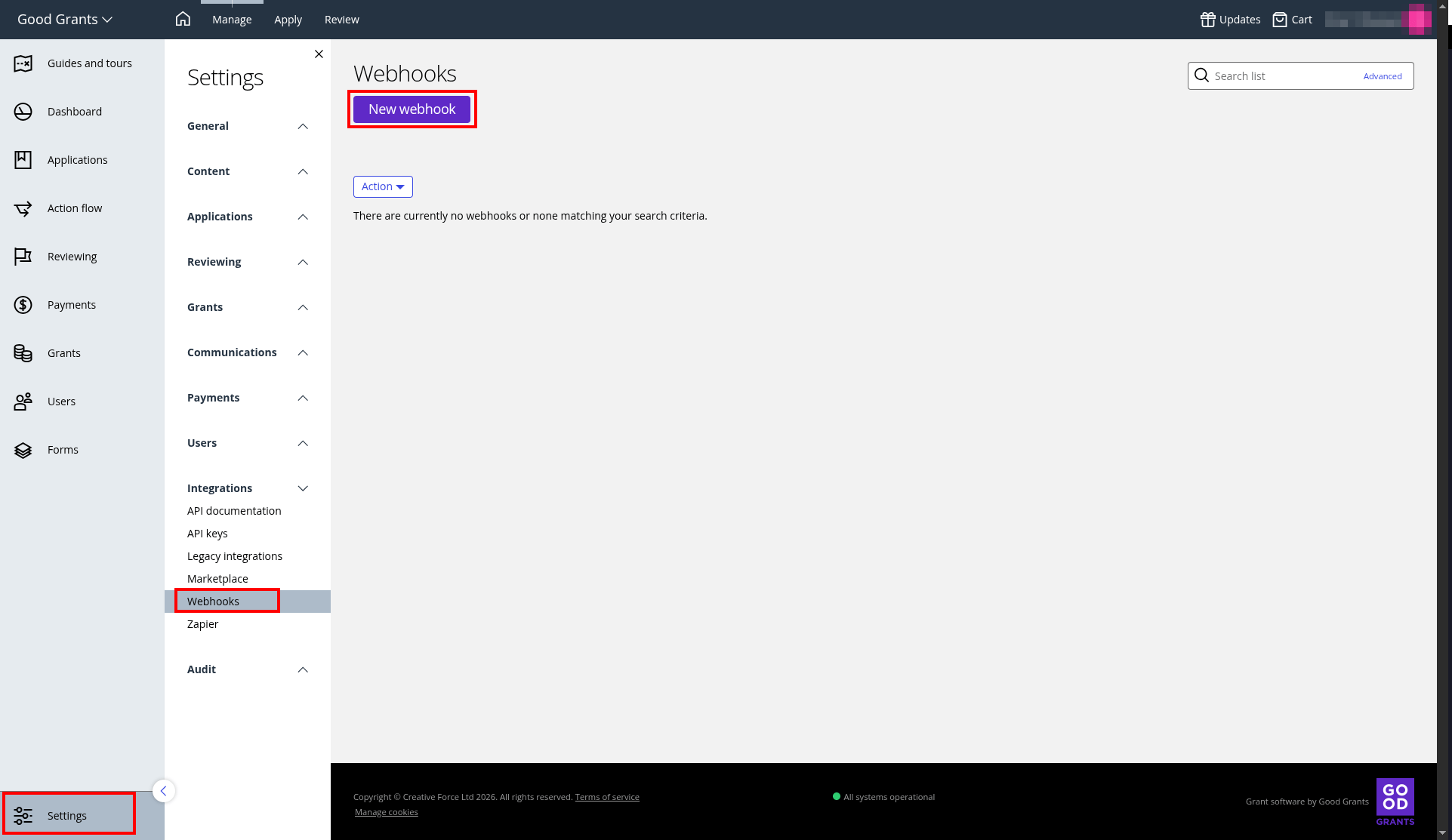
Navigate to *Settings > Integrations > Webhooks*, then click on **New webhook**:
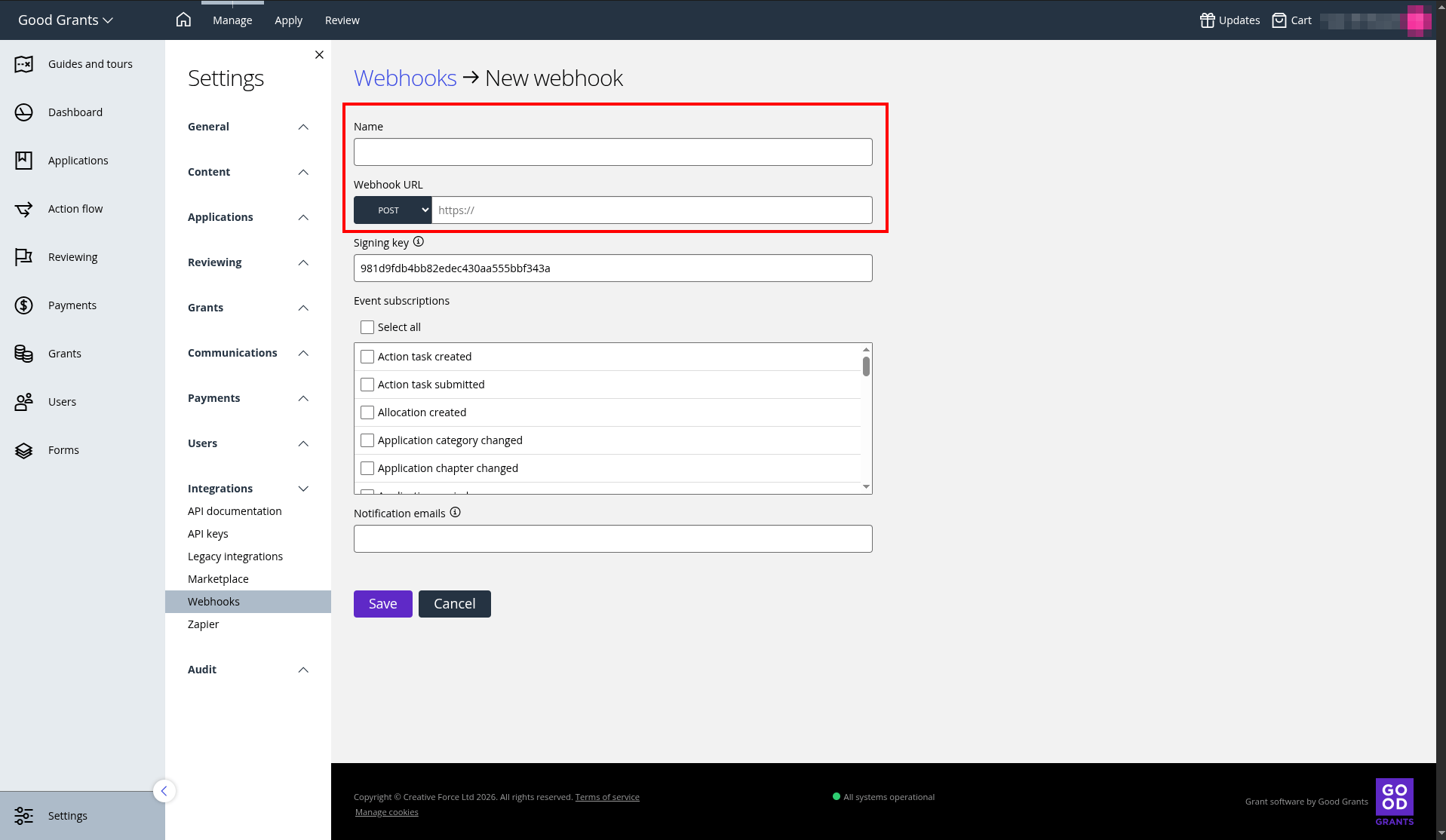
 Use a clear name so you can identify which integration a webhook belongs to later, especially when managing several webhooks.
 Use this key to validate the webhook payload [signature](/docs/additional/webhook-payloads#signature).
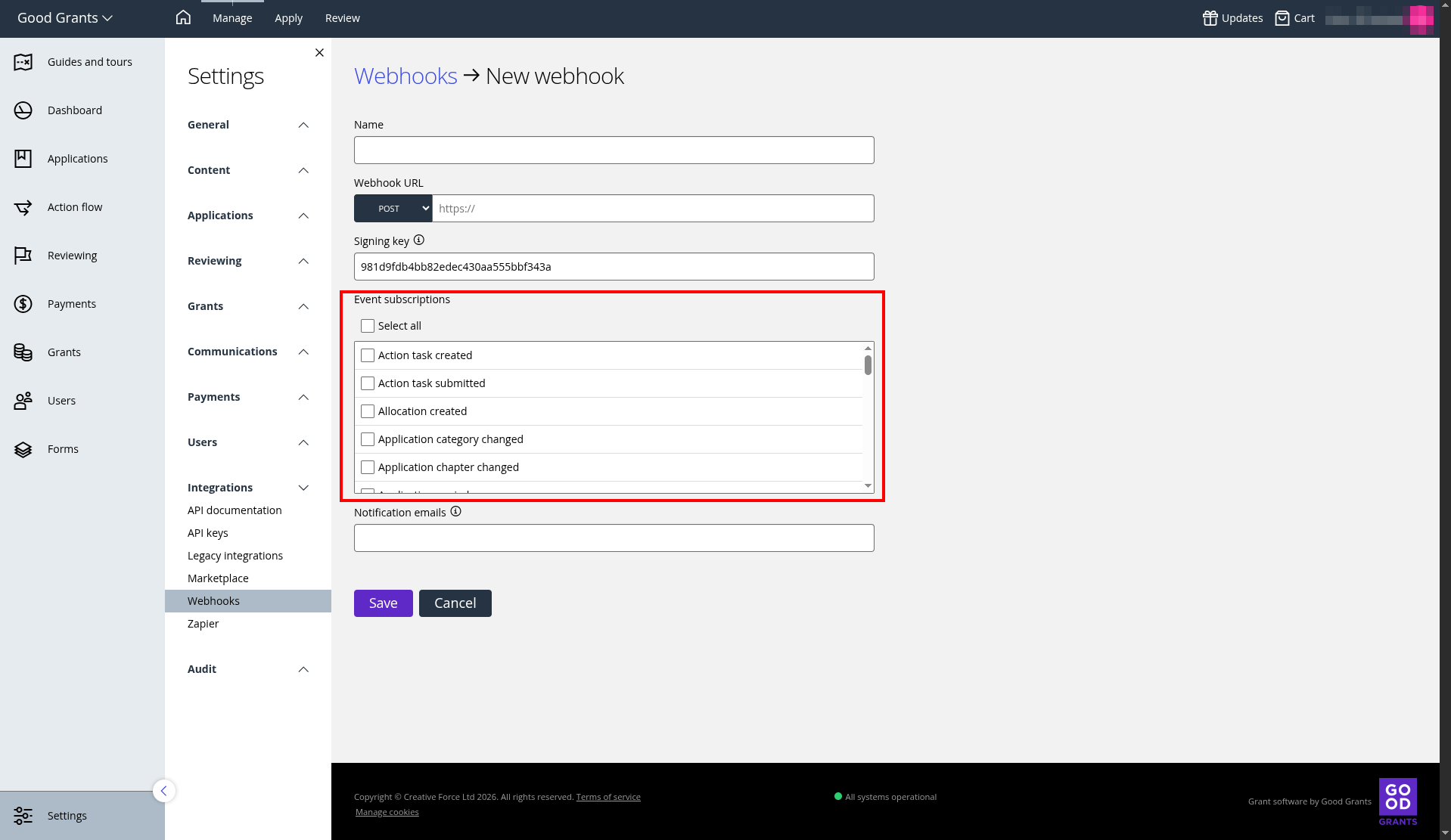
Choose which events trigger this webhook. See [Available subscriptions](/docs/additional/webhook-subscriptions) for the full list.
Use this key to validate the webhook payload [signature](/docs/additional/webhook-payloads#signature).
Choose which events trigger this webhook. See [Available subscriptions](/docs/additional/webhook-subscriptions) for the full list.
 ## Edit an existing webhook
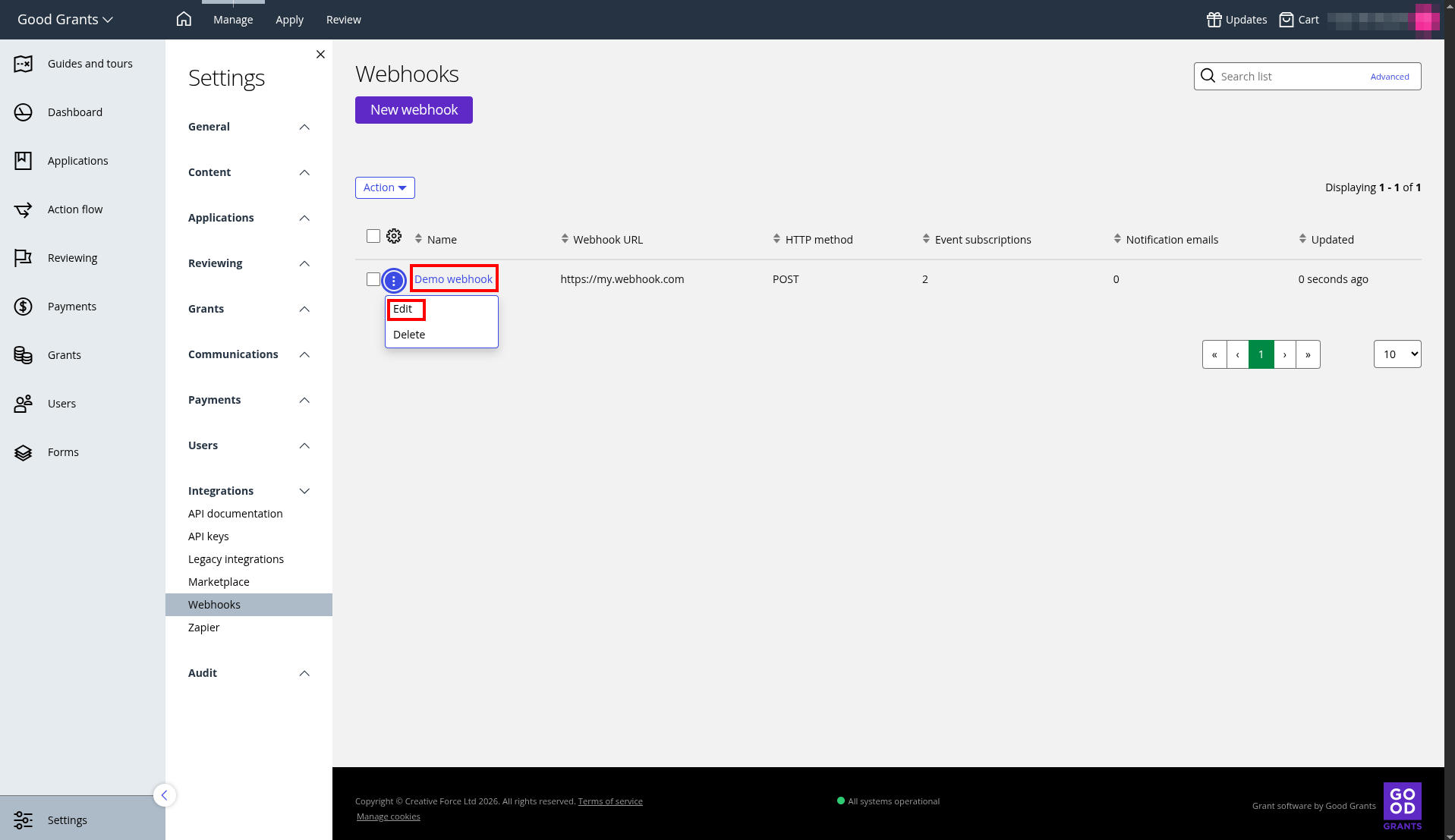
To edit an existing webhook, go to *Settings > Integrations > Webhooks*, then click the name of the webhook, or open the overflow action menu and click **Edit**.
## Edit an existing webhook
To edit an existing webhook, go to *Settings > Integrations > Webhooks*, then click the name of the webhook, or open the overflow action menu and click **Edit**.
 ## Delete an existing webhook
**Deleting a webhook is permanent. The integration stops receiving events immediately, and you cannot undo this action.**
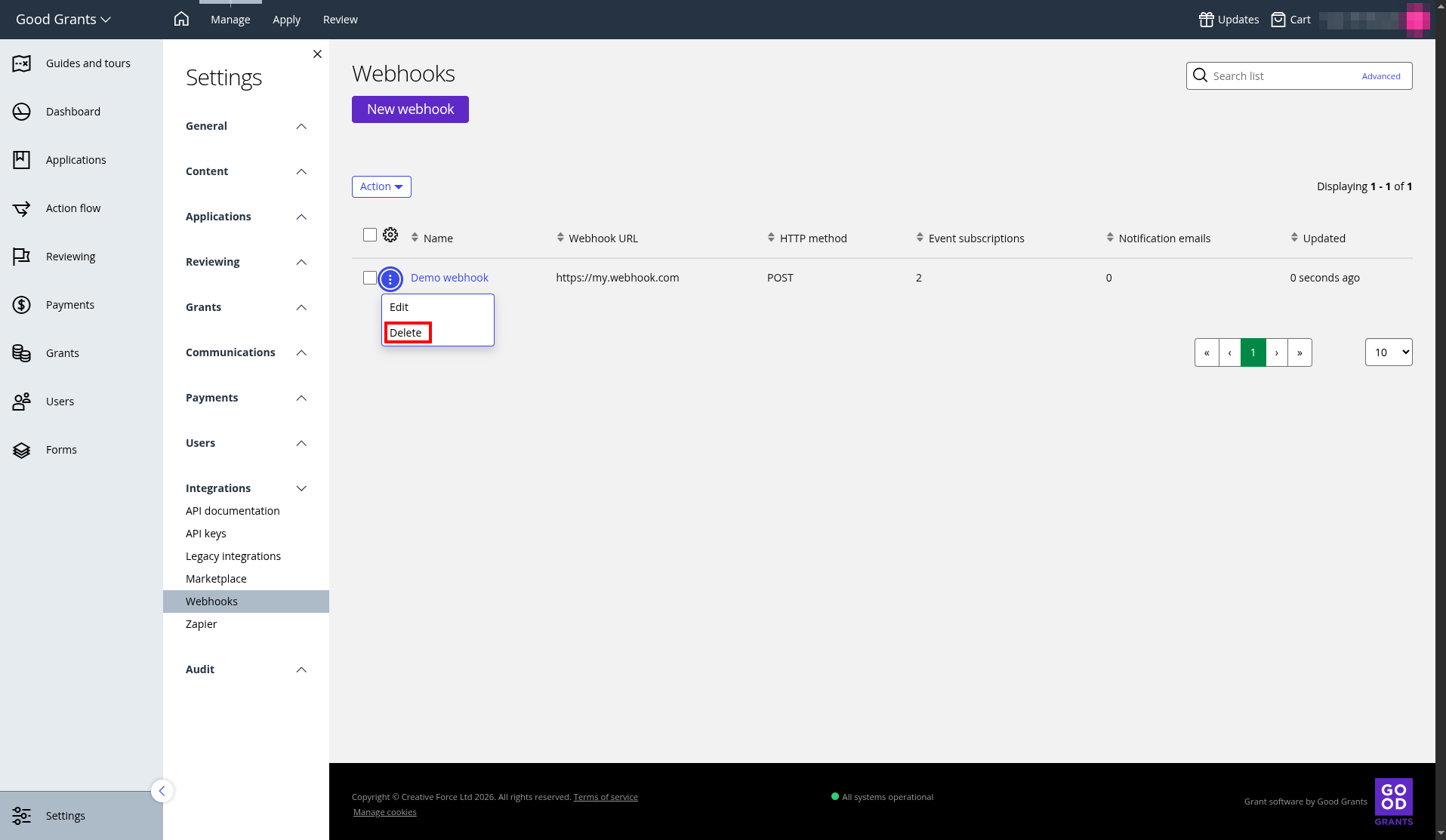
To delete an existing webhook, go to *Settings > Integrations > Webhooks*, pen the overflow action menu for the webhook, click **Delete**, then confirm by clicking **OK**.
## Delete an existing webhook
**Deleting a webhook is permanent. The integration stops receiving events immediately, and you cannot undo this action.**
To delete an existing webhook, go to *Settings > Integrations > Webhooks*, pen the overflow action menu for the webhook, click **Delete**, then confirm by clicking **OK**.