API key scopes
API scopes allow you to restrict access for third parties using an API key. Use a scope to protect your and your applicants’ data by limiting what third parties can access. You can apply one of the following scopes to any API key:- Read only - Use for
GEToperations, restricted to viewing data associated with the endpoint. - Read / Write - Use for
GET,POST,PUT,PATCH, andDELETEoperations, covering create, update, and delete actions on data associated with the endpoint (set by default).
Manage API keys
Generate a new API key
1
Log in to the Good Grants dashboard
2
Generate a new API key
Navigate to Settings > Integrations > API Keys, then click on Generate API Key: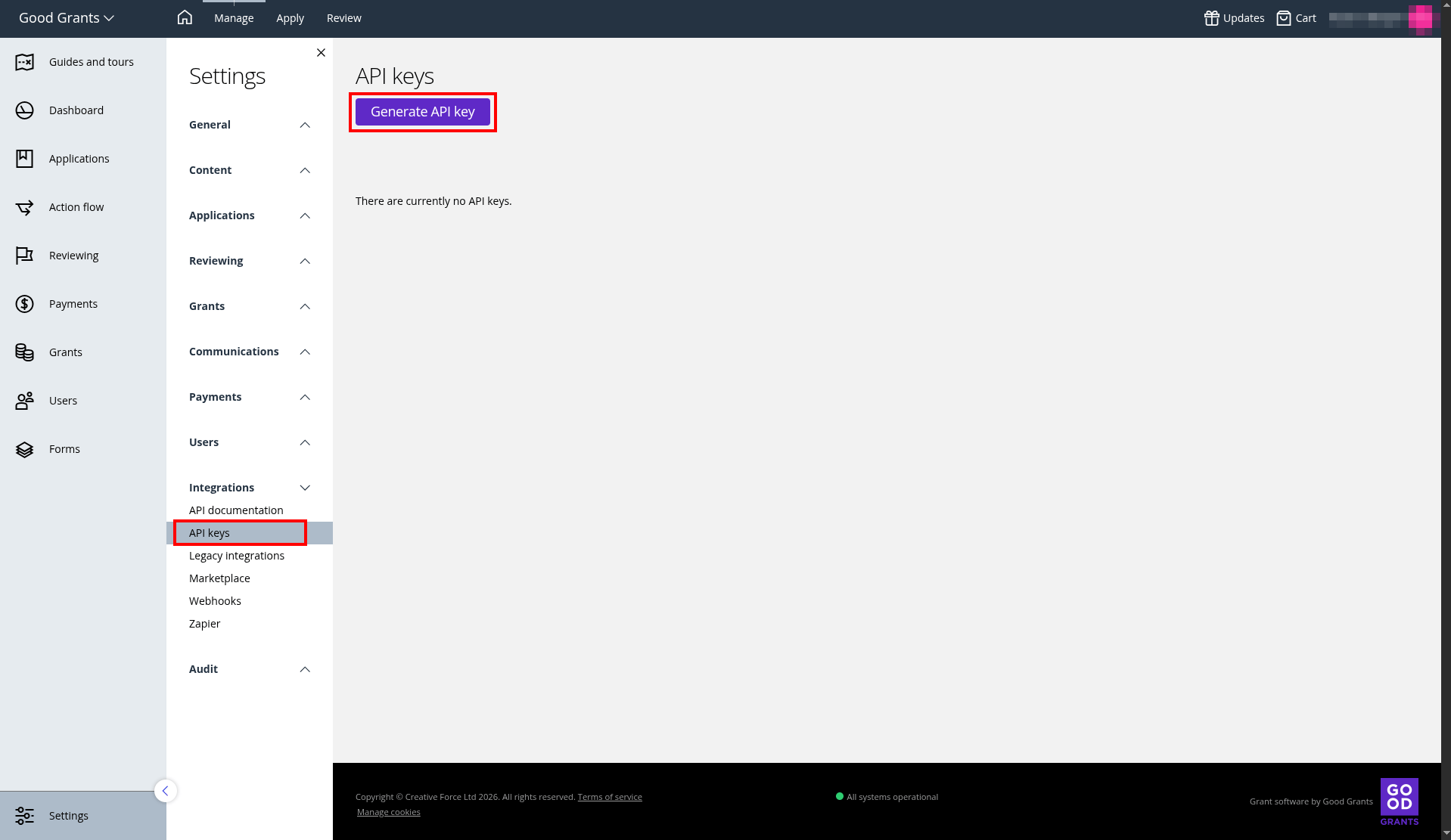
3
Give your API key a name or purpose
Use a clear name or purpose so you can identify which integration a key belongs to later, especially when managing several keys.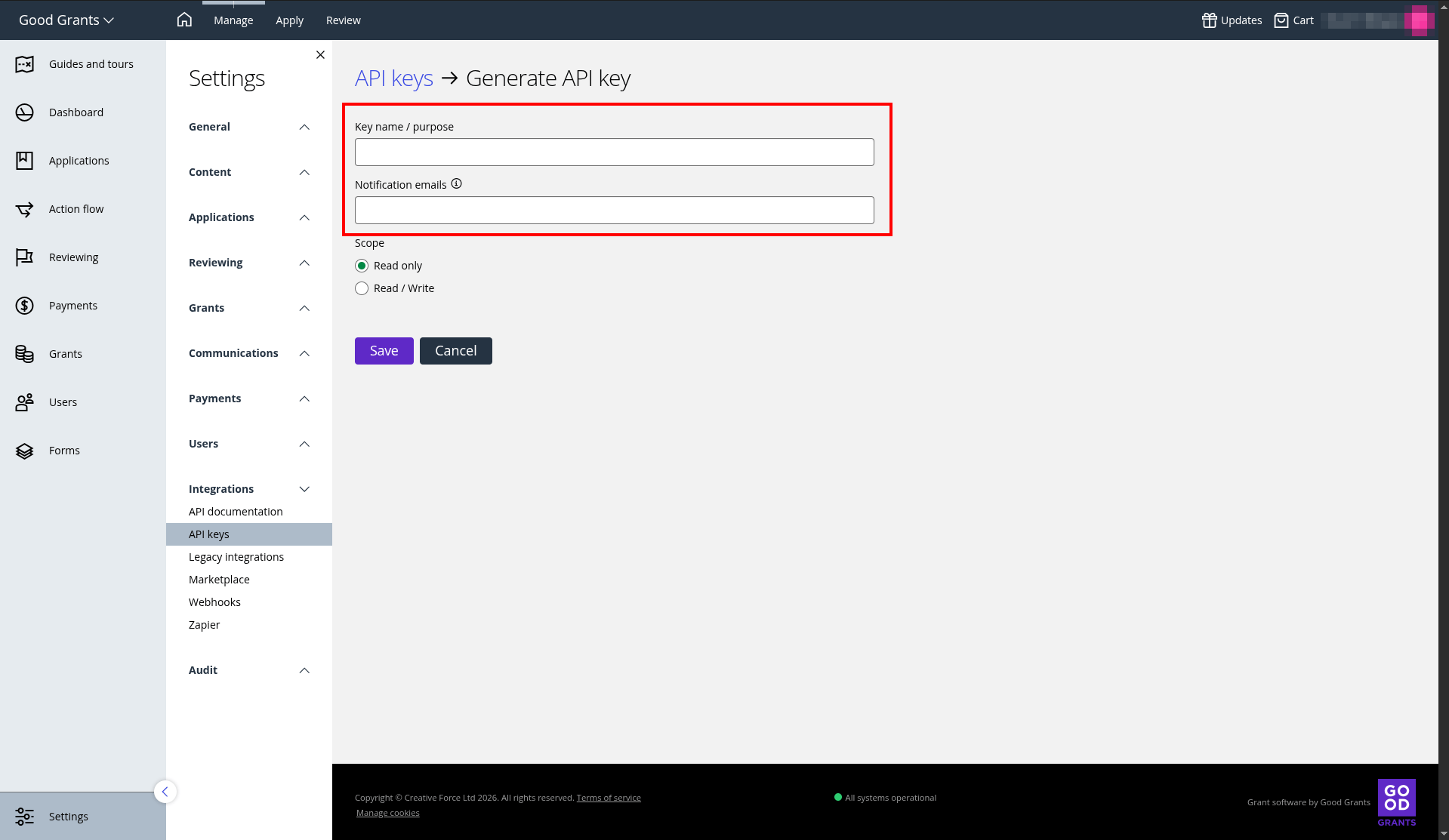
4
Define the scope of the API key
Select Read only for
GET operations only, or Read / Write for full access (GET, POST, PUT, PATCH, DELETE).5
Specify notification email addresses if needed. Separate each address with a comma (,) or semicolon (;)
6
Save your changes
Update an existing API key
To update an existing API key, go to Settings > Integrations > API Keys, then click on the name of API keyname, or open the overflow action menu and click Edit.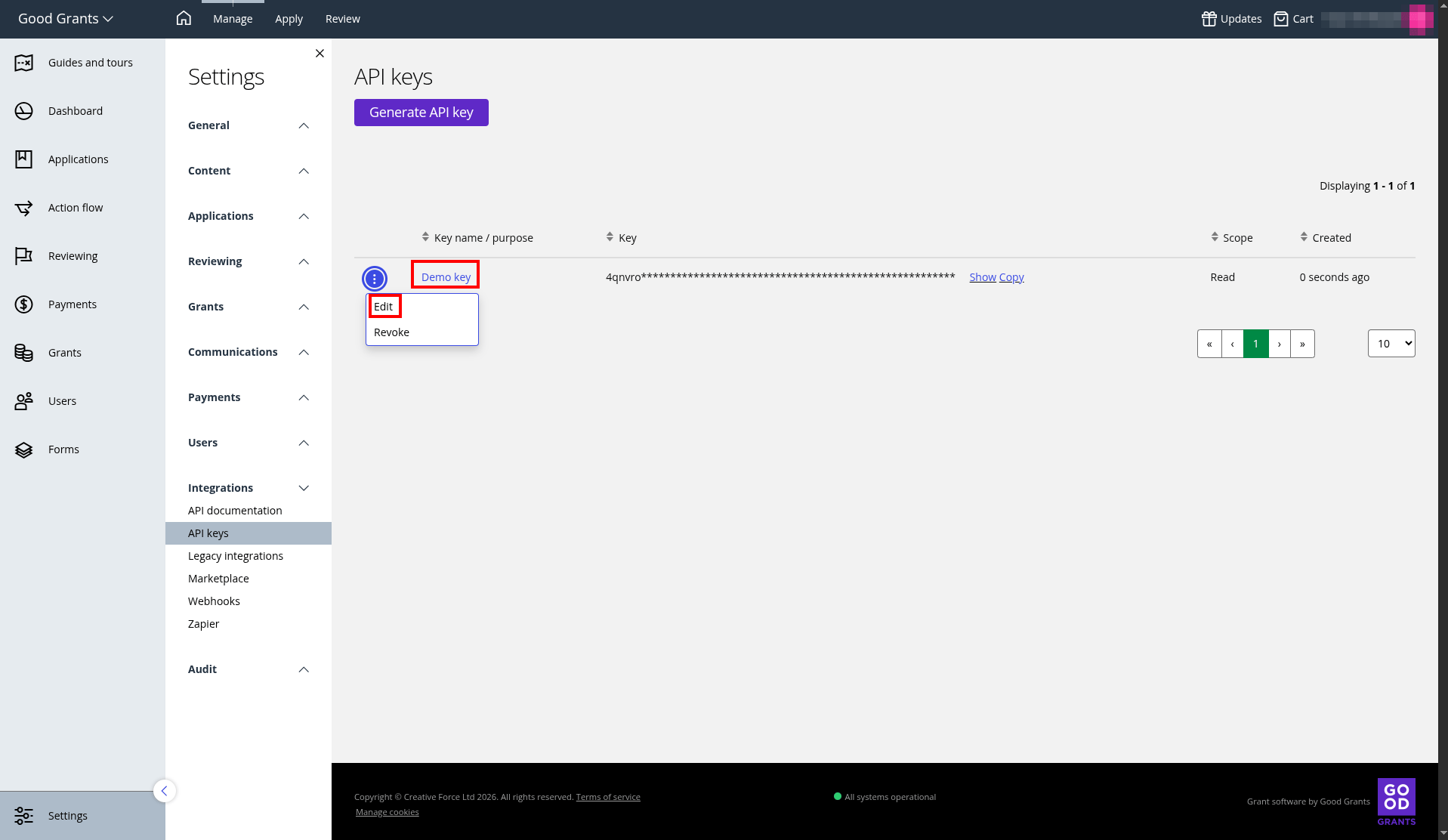
Revoke an existing API key
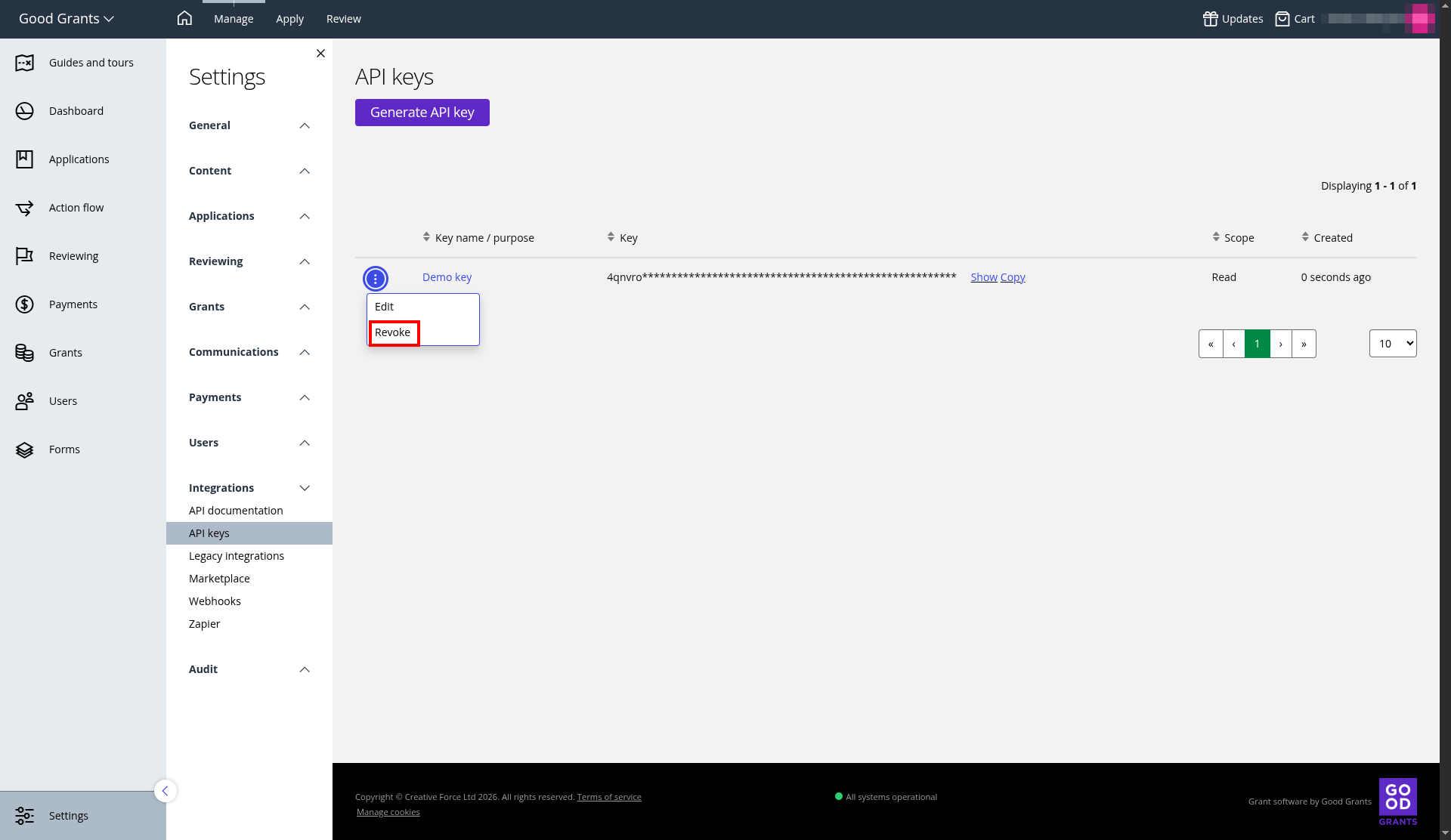
Revoking an API key is permanent. Any integration using the key immediately loses access, and you cannot undo this action.