

Overview
Every Good Grants documentation page includes a menu for quick access to AI-optimised content and AI tool integrations, so you get assistance without leaving the page.Context menu access
Open the dropdown beside the page header on any Good Grants documentation page to reveal the AI integration options.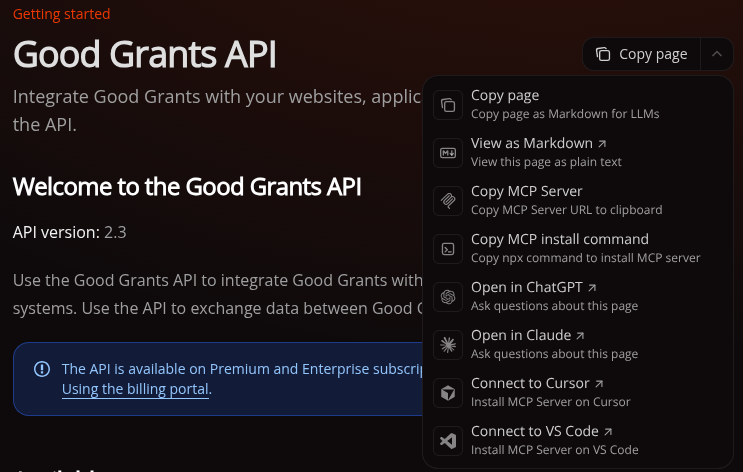
Available options
Page content options
Copy page
Copies the page content as plain Markdown, useful for sharing text or basic copy-paste.View as Markdown
Displays the page as raw Markdown text. Use this when pasting content into an AI tool for analysis or questions.MCP server integration
Copy MCP server URL
Copies the MCP server URL for manual configuration, suited to custom setups or AI tools that support MCP. One-click connectors for MCP-compatible IDEs are also available from the same dropdown.Additional context
Full documentation contextllms-full.txt bundles the complete Good Grants documentation into a single AI-friendly file, available at https://docs.goodgrants.com/llms-full.txt. Use it when an AI tool needs full context across the Good Grants API rather than a single page.
For step-by-step MCP server setup and troubleshooting, see Docs MCP.
How to use
For direct AI tool access
- Open any Good Grants documentation page
- Click the header dropdown
- Pick the option matching your preferred AI tool
For manual AI tool usage
- Open any Good Grants documentation page
- Click the header dropdown
- Choose Copy page
- Paste the content into your AI tool of choice and start asking questions
For comprehensive context
- Go to
https://docs.goodgrants.com/llms-full.txt. - Copy the link or the file contents for full documentation context.
- Use this when a question touches several parts of the Good Grants docs.
For MCP server setup
- Open any Good Grants documentation page
- Click the header dropdown
- Choose Copy MCP server URL, or use the one-click Connect to Cursor or Connect to VS Code buttons
- See Docs MCP for the full setup walkthrough
Best practices
Provide context
- Mention the specific API endpoints involved in your question.
- Describe your use case, such as applications, webhooks, or authentication.
- Name the Good Grants resources you are working with.
- For questions spanning multiple topics, pull in
llms-full.txtfor broader context.
Combine with the MCP server
- Reach for the context menu for quick, one-off AI questions.
- Set up Docs MCP for full AI tool integration during ongoing development.
- The two work well together. Combine them for the best results.